How to Run an Accurate Internet Speed Test and Actually Interpret the Results
Learn how to benchmark internet speed accurately, interpret latency-under-load, spot bufferbloat, and choose the right tool for real network diagnostics.
 Dig Trace Team· Network Engineering Team8 min read
You've seen the ads. Gigabit fiber blazing at 940 Mbps. Then you hop on a video call and the audio still drops. The problem isn't always bandwidth. It's that most speed tests reward peak throughput while hiding the metrics that actually matter for real work.
This guide shows you how to test your connection properly, read the full report, and catch problems like bufferbloat before your users file a ticket. You'll walk away with a repeatable workflow you can run from a browser or the command line.
An internet speed test simply moves data between your device and a remote server, then divides volume by time to get throughput. Modern tests also sample round-trip latency, jitter, and packet loss under both idle and loaded conditions. The server selection matters a lot. Your ISP might host a test node two hops away, giving an inflated number that evaporates the moment you hit a real-world CDN.
For quick browser checks, match the tool to your goal. If you're verifying whether your ISP is delivering the advertised rate, use Ookla and select the nearest server. If you want to know whether Netflix will buffer, Fast.com uses Netflix's CDN paths and cuts straight to the point. For diagnosing call quality or gaming lag, Dig Trace internet speed test tool is hard to beat because it measures loaded latency and jitter while the pipe is busy, then rates your connection with an AIM score. It runs on the same Cloudflare testing engine.
You can also run a check directly from our own tool at Digtrace Speed Test. If you're benchmarking from Asia, try the Indonesian, Japanese, or other regional variants to test against closer edge nodes.
Before you run any speed test, check your baseline. Open a terminal and ping a stable public DNS:
ping -n 50 1.1.1.1Note your minimum, average, and any packet loss. This is your idle baseline. After the speed test saturates your connection, run the same ping again while the test is still going. If latency doubles under load, you've confirmed bufferbloat before even looking at bandwidth numbers.
Server selection drives the result as much as your actual connection does. Pick a node in the same city and you'll see low latency and high throughput — that tells you your local loop is healthy. Switch to a node across the country or overseas and both numbers will drop, but that's what real-world traffic to those regions actually feels like. Test both. The gap between local and international is often where the real problem hides.
To get honest numbers, wire a machine directly into the modem or router with an Ethernet cable. Kill background sync, Dropbox, Steam, and anything else that talks to the internet. Open one browser tab. If you're testing Wi-Fi, place the laptop in the same room as the AP and disable VPNs during the baseline run. On a phone, turn on airplane mode with Wi-Fi only to prevent 4G/5G background data from interfering.
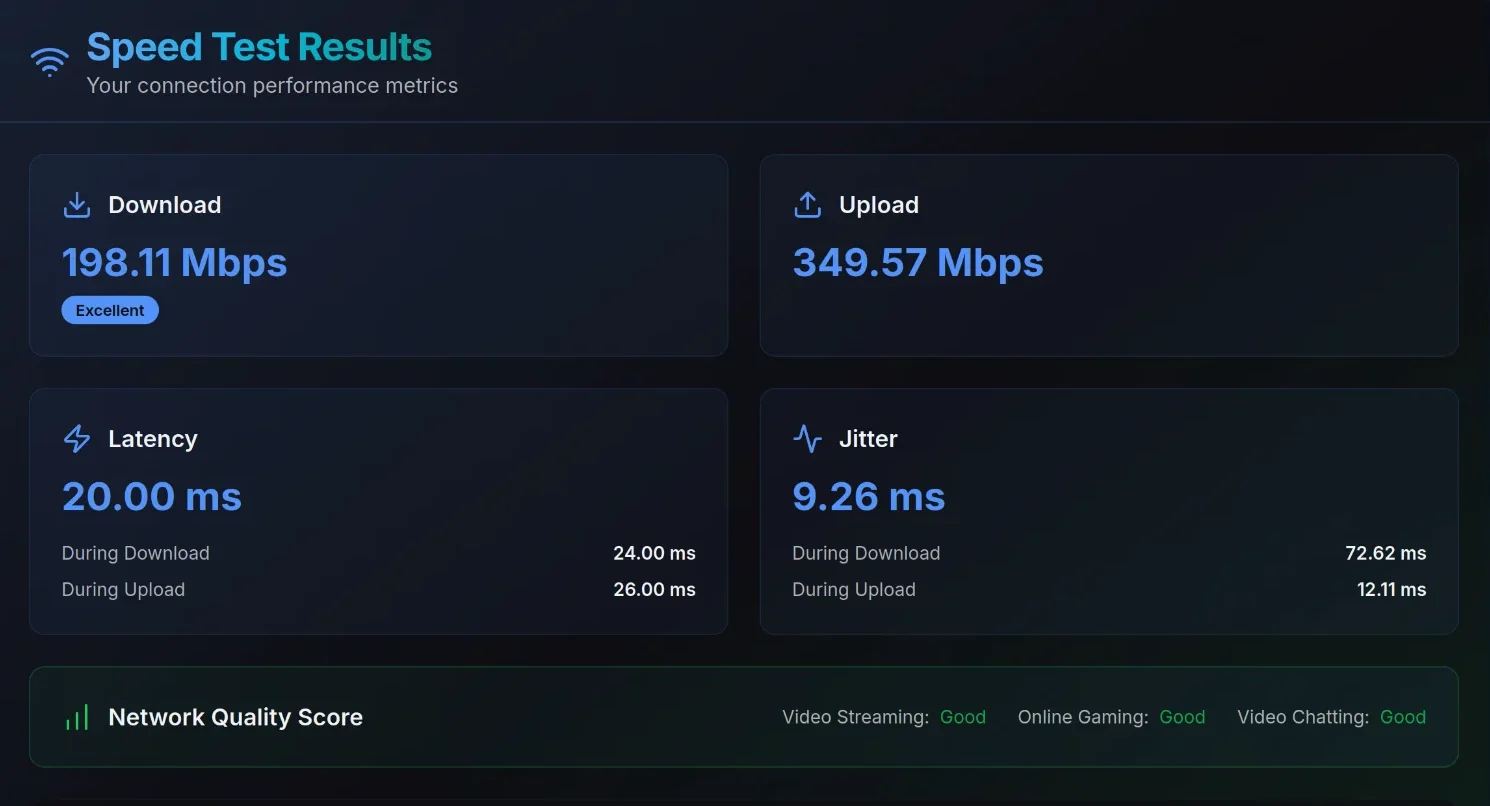
A single test is a snapshot, not a trend. Run three back-to-back trials and look at the median, not the best score. Peak numbers often come from TCP ramp-up artifacts or short bursts that don't reflect sustained throughput. Test at different times of day too because your throughput during peak evening hours when neighbors are streaming will look very different from 2 AM.
The download and upload bars are only part of the story. Look at idle latency first. Under 20 ms is great; under 50 ms is workable. Then watch loaded latency. If it jumps from 15 ms to 150 ms while data is flowing, you've got bufferbloat. That means your router or ISP is overfilling buffers, and it will wreck video calls even on a 500 Mbps line.
If your loaded latency more than doubles your idle latency, you are dealing with bufferbloat. Enable Smart Queue Management on your router, or ask your ISP to check their traffic shaping at the edge.
Jitter above 30 ms can garble VoIP, and any packet loss over 0.1% deserves investigation. For a solid explanation of why different tools give different numbers, check out this breakdown of speed test accuracy.
For repeatable scripting or remote server checks, CLI tools beat browser tabs. Install Ookla's official speedtest CLI. To test a specific path to a server you control, nothing beats iperf3 — just run iperf3 -s on the server side first, then connect from the client.
# Ookla Speedtest CLI with server selection and CSV output
speedtest --server-id=12345 --format=csv

# iperf3 — server must be running iperf3 -s on the other end
iperf3 -c your-server.example.com -t 30 -i 1

# Parallel streams to stress a high-bandwidth link
iperf3 -c your-server.example.com -P 10 -t 30
If you're chasing bufferbloat, pair the test with a simple load generator. Run a ping to a stable public IP while saturating the link.
# Terminal A: generate load
iperf3 -c your-server.example.com -t 60

# Terminal B: watch latency under load
ping 1.1.1.1
A speed test tells you how fast your connection is. It doesn't tell you where the bottleneck lives. If latency is high, the next step is always traceroute (or tracert on Windows):
traceroute -n 1.1.1.1Speed test gives you the what. Traceroute gives you the where. Together they turn "the internet is slow" into "hop 7 on Cogent's peering link is dropping 30% of packets between 8 and 10 PM." That's the kind of evidence ISPs actually respond to.
One more thing people overlook: IPv6. Most ISPs have rolled it out, and your router probably has it turned on. But IPv4 and IPv6 traffic often take different routes with different latency profiles. If your speed test runs over IPv4 but your streaming traffic goes over IPv6, the results won't match. Test both paths separately when you can.
A few traps will skew your results. Old laptops with weak CPUs can bottleneck a gigabit test before the network does. Browser extensions, antivirus proxies, and corporate SSL inspection can all throttle flows or add latency. Testing over Wi-Fi during a microwave dinner is a classic way to invent problems that don't exist on the wire. And remember that most consumer routers can't shape traffic well, so a speed test from a wireless laptop while someone else is streaming will always look worse than reality.
If you need bulletproof data to dispute a slow circuit, document everything. Record the date, time, server ID, tool version, and whether you were wired or wireless. ISPs love to dismiss Wi-Fi results. If the loaded latency is terrible but raw speed is fine, point them at the bufferbloat. That's a network architecture issue, not a Wi-Fi coverage issue.
For ongoing monitoring, pick one methodology and stick with it. Set a calendar reminder to test twice a week from the same wired host. If you're managing a fleet, consider scheduled iperf3 runs between sites to catch degradation before it becomes an outage.
One last thing that trips people up: the unit. Your ISP sells you 500 Mbps. But your download manager shows MB/s. The conversion: 1 MB/s equals roughly 8 Mbps. So a 1 Gbps (1000 Mbps) line has a theoretical ceiling of roughly 125 MB/s. If you're pulling anything above 110 MB/s on a gigabit plan, you're in good shape. If you're stuck at 70 MB/s, half your throughput is going somewhere else.
Try this right now. Run a wired test in the morning. Run the same test in the evening while someone is streaming 4K. Compare idle and loaded latency. The gap between those two numbers tells you far more about your network than any headline download figure ever will.